NGINX Modern Apps > Class 5 - NGINX App Protect WAF & DoS > Module 2 - Protect the Arcadia Finance App with NGINX App Protect WAF Source | Edit on
Installing NGINX App Protect on an existing NGINX Plus instance
Note
NGINX Plus and NGINX App Protect repositories are accessed using a cert/key pair that enables access for customers who have purchased licenses. In this lab, NGINX Plus repo keys are already copied to the Ubuntu VM.
Note
This section of the lab covers installation of NGINX App Protect. General instructions for installation can be found at https://docs.nginx.com/nginx-app-protect-waf/admin-guide/install/.
- Connect to the jump host via RDP if not already.
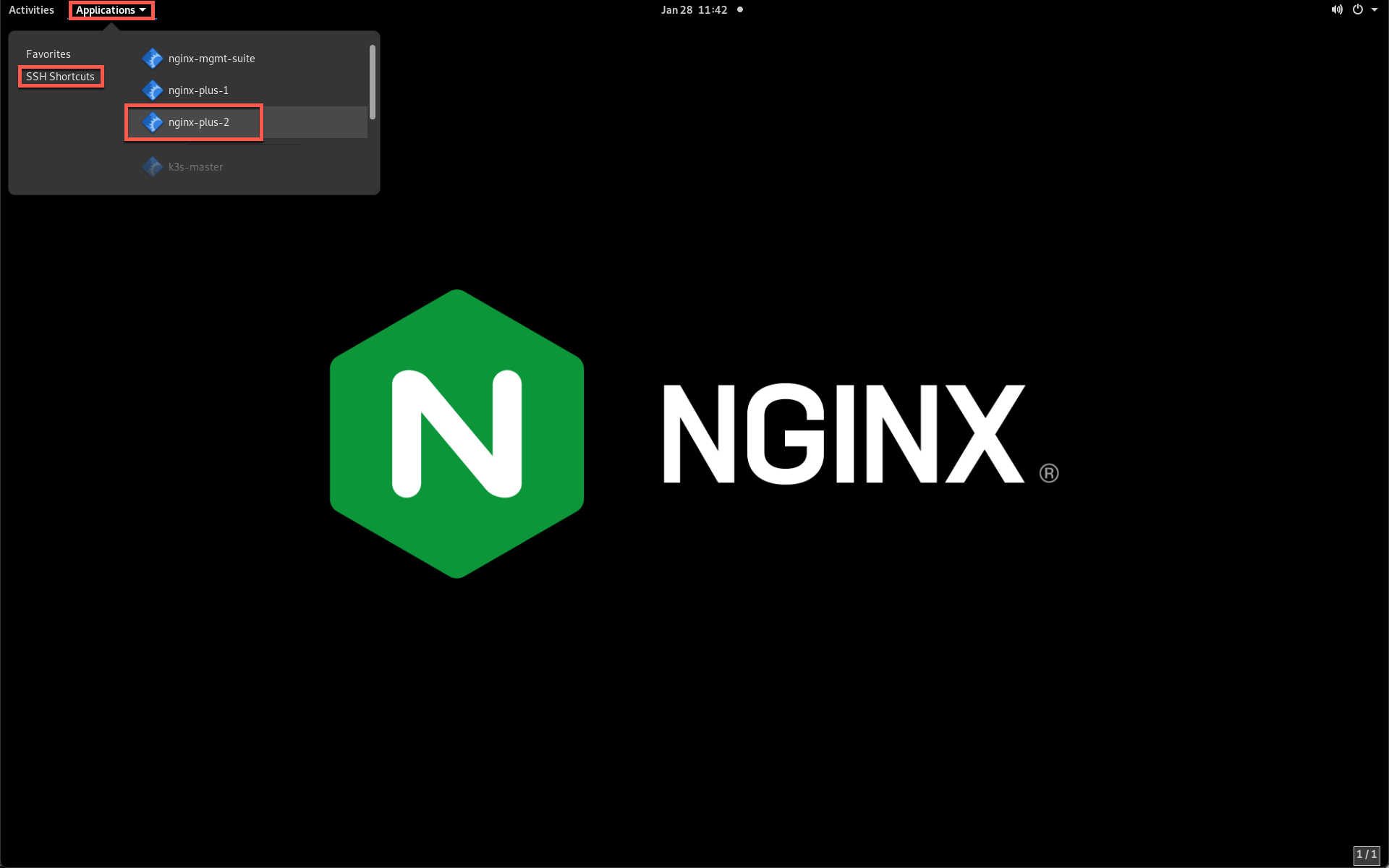
- Installation of NGINX App Protect is performed on the CLI of the host. Click on the Applications menu, select SSH Shortcuts and select nginx-plus-2.
Note
This host has NGINX Plus installed and serving the Arcadia Finance app, but NGINX App Protect is not installed.
- Update the repository and install the NGINX App Protect WAF package:
sudo apt-get update
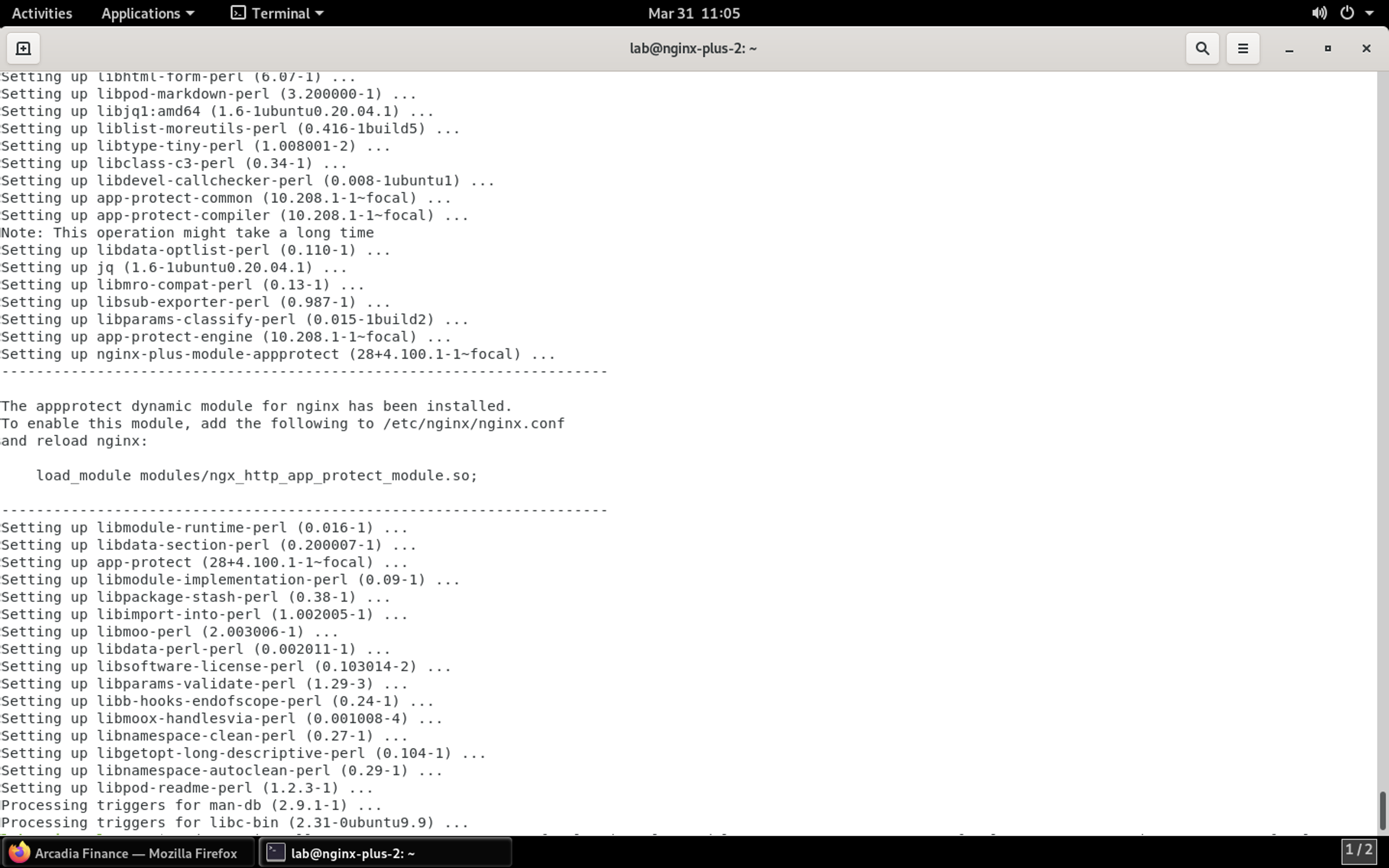
sudo apt-get install -y app-protect
If you are prompted for a password, enter AppWorld2024!.
Result
- Load the NGINX App Protect WAF module on the main context in the nginx.conf file:
Open the file in an editor:
sudo nano /etc/nginx/nginx.conf
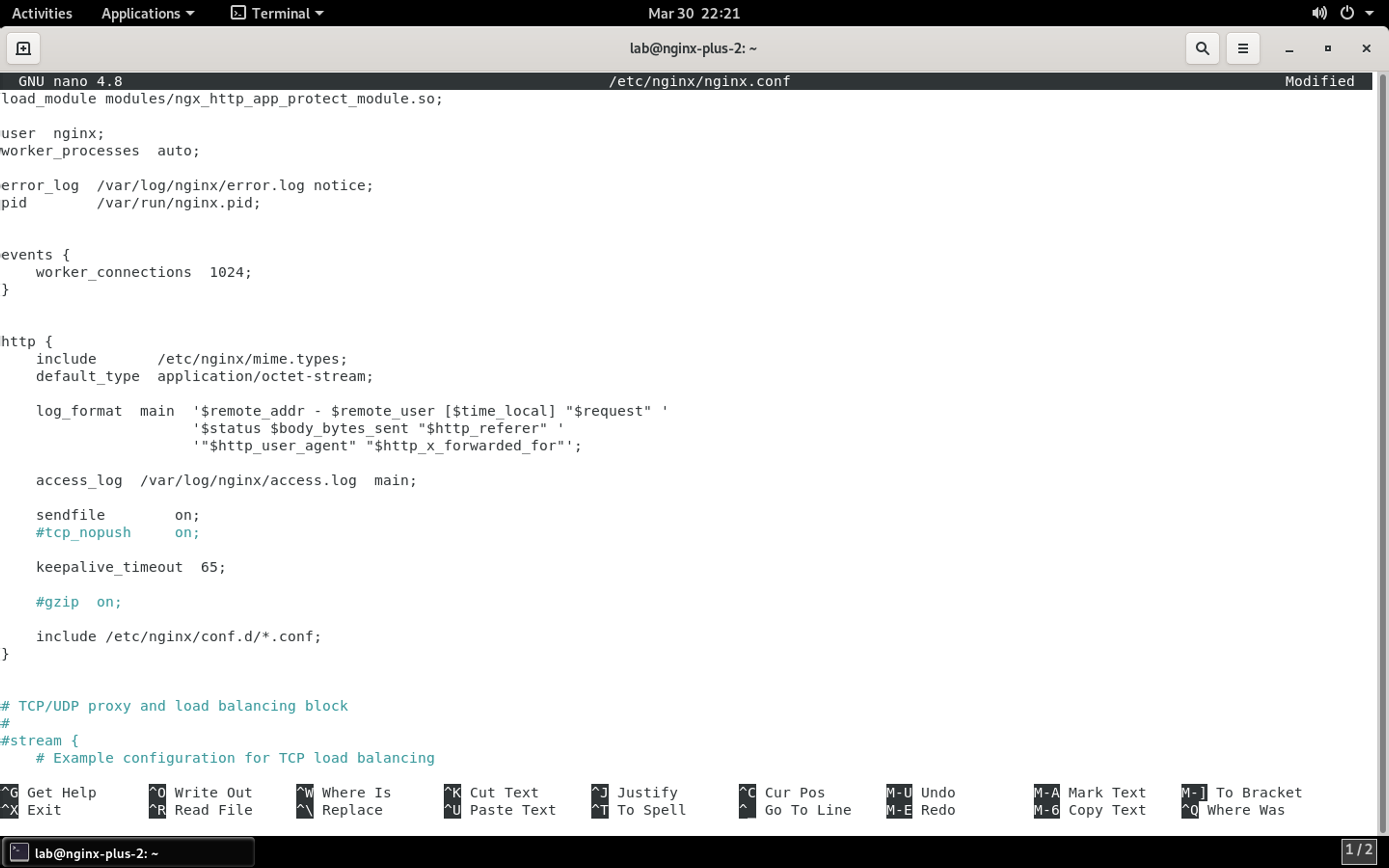
Add the following line to the top of the file:
load_module modules/ngx_http_app_protect_module.so;
Your configuration file should look similar to below:
Press CTRL + X to save the file, followed by Y when asked to save the buffer, then enter when asked for the filename.
- Start the NGINX App Protect service and set it to start at boot:
sudo systemctl enable --now nginx-app-protect
- Restart the NGINX service:
sudo nginx -s reload
Providing that no errors have occurred during these steps, you now have NGINX App Protect installed. Continue to the next section of the lab.